2026-02-08
Fish Shell: A friendly interactive shell.
Let me describe you my current terminal/shell setup.
To me kitty is my preferred terminal emulator, and I have been using it for a while now. It is fast, feature-rich, and highly customizable.
It comes with a built-in GPU rendering engine, which makes it incredibly fast and responsive. You can extend it (though I haven't had the need to do so).
Changing your theme (from inside a kitty window) is as simple as:
kitten themes.
Screenshot
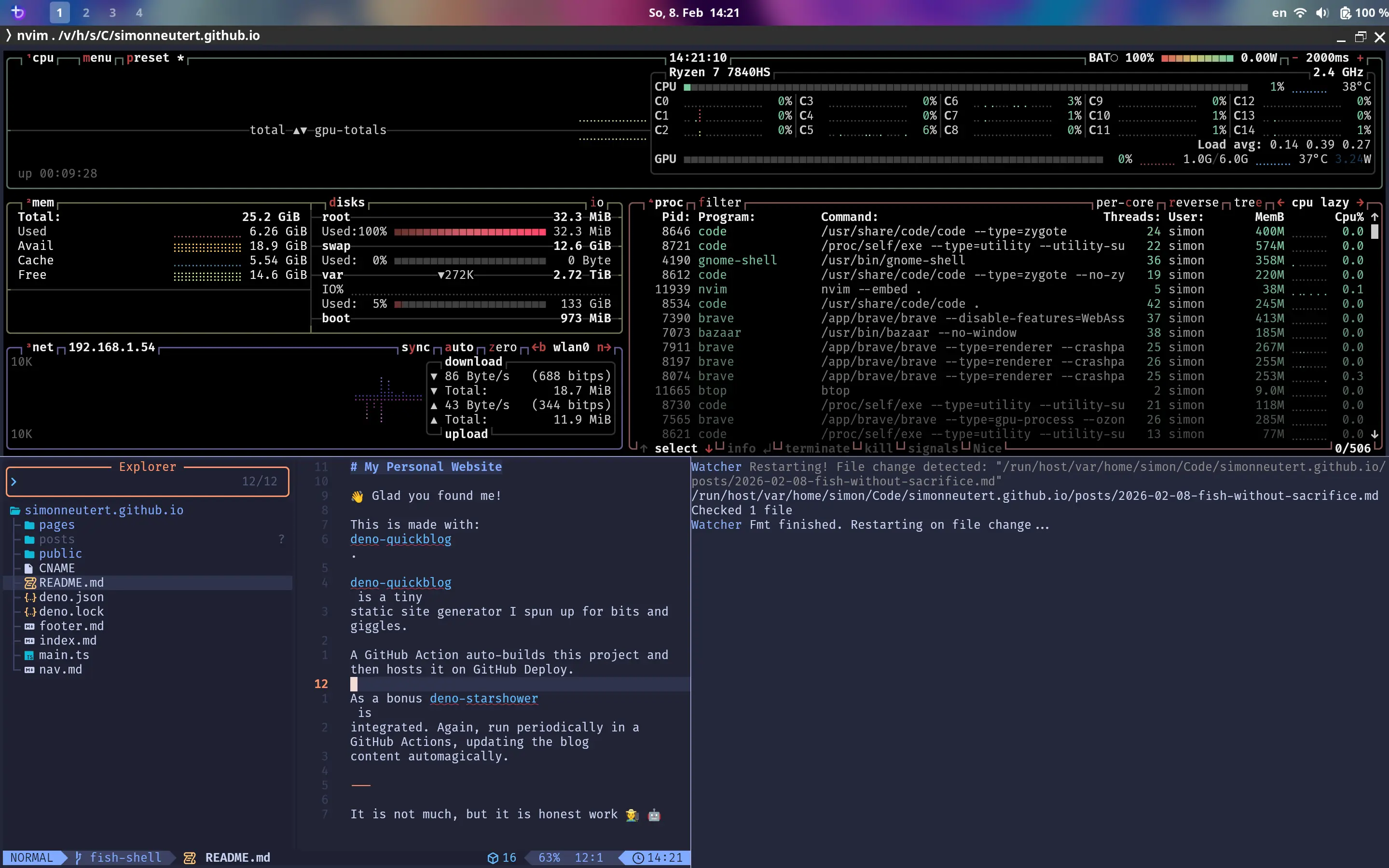
How I run my desktop
The main thing and only thing I changed in my OS was the default terminal, which I set to kitty.
Hitting Ctrl+Alt+T opens a new kitty window, and I am good to go.
Don't change your system shell!
I let me underlying system shell be bash/zsh or whatever the OS has as its
default.
Why? Because I don't want to mess with my system shell, and I don't want to have
to worry about breaking things.
So, how do I run fish without changing my system shell? I make kitty run fish as ITS shell, without changing the system shell.
To configure kitty to use fish, I configure a kitty
start-up session in my kitty.conf file:
# i use nvim to edit my kitty config:
nvim .config/kitty/launch.kitty-session
and my launch.kitty-session file looks like this:
cd ~

launch fish
cd ~ is optional, but I like to start in my home directory when I open a new
terminal.
Never change without a backup, so I always make a backup of my kitty.conf file
before making any changes, just in case I mess something up.
cp .config/kitty/kitty.conf .config/kitty/kitty.conf.bak is my go-to command
for that.
One more step to take, edit .config/kitty/kitty.conf and search for
"startup_session" and set it to the path of your session file:
# in my case, it was around line 1856, where I changed
# (or added, it depends) the following line:
startup_session ~/.config/kitty/launch.kitty-session
This will get you started with fish for/in kitty, and you can customize it
further to your liking.
Make it perfect, use/set your keyboard shortcuts
I advise to skim the official kitty documentation and read the file itself a little bit to get a feel for how it works and what you can do with it. It is very well documented and has a lot of features, so it is worth taking the time to explore it.
Though it may be daunting at first, it is worth it to know what is possible and how it works.
Here's a snippet from my kitty.conf (it's very long, I felt overwhelmed at
first, too) file that defines some keyboard shortcuts to launch new kitty
windows or tabs with fish as the shell:
#: Keyboard shortcuts {{{

#: Keys are identified simply by their lowercase Unicode characters.
#: For example: a for the A key, [ for the left square bracket key,
#: etc. For functional keys, such as Enter or Escape, the names are
#: present at Functional key definitions
#: <https://sw.kovidgoyal.net/kitty/keyboard-protocol/#functional>.
#: For modifier keys, the names are ctrl (control, ⌃), shift (⇧), alt
#: (opt, option, ⌥), super (cmd, command, ⌘).

#: Simple shortcut mapping is done with the map directive. For full
#: details on advanced mapping including modal and per application
#: maps, see mapping <https://sw.kovidgoyal.net/kitty/mapping/>. Some
#: quick examples to illustrate common tasks::

#:     # unmap a keyboard shortcut, passing it to the program running in kitty
#:     map kitty_mod+space
#:     # completely ignore a keyboard event
#:     map ctrl+alt+f1 discard_event
#:     # combine multiple actions
#:     map kitty_mod+e combine : new_window : next_layout
#:     # multi-key shortcuts
#:     map ctrl+x>ctrl+y>z action

map ctrl+shift+t new_tab_with_cwd fish

#: The full list of actions that can be mapped to key presses is
#: available here <https://sw.kovidgoyal.net/kitty/actions/>.

# kitty_mod ctrl+shift

#: Special modifier key alias for default shortcuts. You can change
#: the value of this option to alter all default shortcuts that use
#: kitty_mod.

# clear_all_shortcuts no

#: Remove all shortcut definitions up to this point. Useful, for
#: instance, to remove the default shortcuts.

# action_alias

#: E.g. action_alias launch_tab launch --type=tab --cwd=current

action_alias new_window_fish launch --type=window --cwd=current fish
action_alias new_tab_fish launch --type=tab --cwd=current fish

#: Define action aliases to avoid repeating the same options in
#: multiple mappings. Aliases can be defined for any action and will
#: be expanded recursively. For example, the above alias allows you to
#: create mappings to launch a new tab in the current working
#: directory without duplication::
This will allow you to open a new tab with Ctrl+Shift+T and a new window with
Cmd+Enter or Kitty_Mod+Enter (which is usually Ctrl+Shift+Enter by
default).
map ctrl+shift+t new_tab_with_cwd fishand:
map kitty_mod+enter new_window_fish
map cmd+enter new_window_fish
This setup allows me to quickly open new tabs or windows with fish as the shell, and I can customize it further to my liking.
More shortcuts I use daily
Here are some more shortcuts I use daily in my kitty configuration.
Window Control
Windows in kitty are more like panes in a tiling window manager, and they are great for multitasking and organizing your workflow.
ctrl+dto close the current tab or window (when there no tool running)ctrl+shift+wto close the current windowctrl+shift+enterto open a new window (windows are closest to what you'd expect when thinking of a tiling window manager, while tabs are more like browser tabs)ctrl+shift+[andctrl+shift+]to switch between windowsctrl+shift+lto switch the window layout (in a tab, you can have multiple windows)ctrl+shift+bto move the current window around in the layout (useful for rearranging windows in a tab)
Tabs
Tabs are more like browser tabs, and they are great for grouping related tasks together.
ctrl+shift+tto open a new tab with the current working directoryctrl+shift+leftandctrl+shift+rightto switch between tabs